What is Printing Bleed in Commercial Printing and How to Use It.
Standard bleed is 0.125 inch (1/8 inch, about 3 mm) on each trimmed edge. Any image, background color, or design element that touches the edge of the finished piece should extend 0.125 inch past the trim line, so no sliver of white paper shows after the sheet is cut. Below we explain why bleed matters, how much safe margin to leave, and how to set bleed in InDesign.
What is a Bleed in Commercial Printing?
Written by Kraig Downham, Marketing Director, with Printing Partners since 2005. Last updated October 2026.
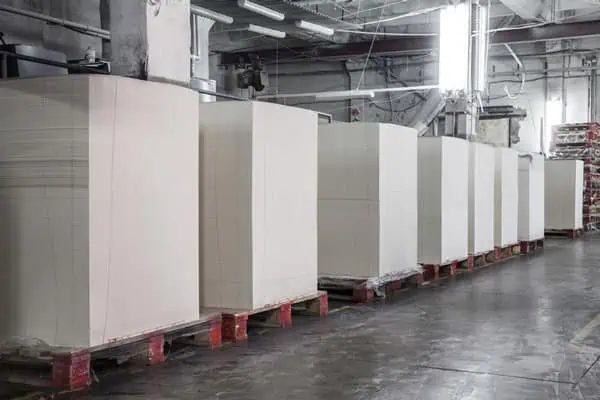
A bleed is the extra image, background color, or design element that extends beyond the trim edge of the printed page. Jobs print on a larger sheet and are cut down to finished size afterward, so artwork that stops exactly at the trim line can leave a thin white edge if the cut lands slightly outside it.
To achieve this, you need to create artwork with bleeds. This means your artwork should have extra elements extending beyond the page edges so it can be trimmed down and still look perfect. Usually, a standard bleed for commercial printing is 0.125 inches (1/8th inch) on each side. This ensures no white edges on the finished product after trimming and accommodates any small misalignment during cutting or trimming.
Designing with bleeds also involves ensuring all important text or images are kept at least 0.125 inches inside from all four cut sides of the document’s boundaries as these will get cut off when trimmed. Therefore, all critical elements of your design should be securely inside these boundaries to avoid being lost during trimming or cutting.
Our prepress team checks every file for bleed, resolution, and margins before it reaches press. If a file arrives without bleed, we tell you exactly what needs fixing before anything is printed, so you are not paying for a reprint later.
Why is Bleed Important?
Cutter Draw:
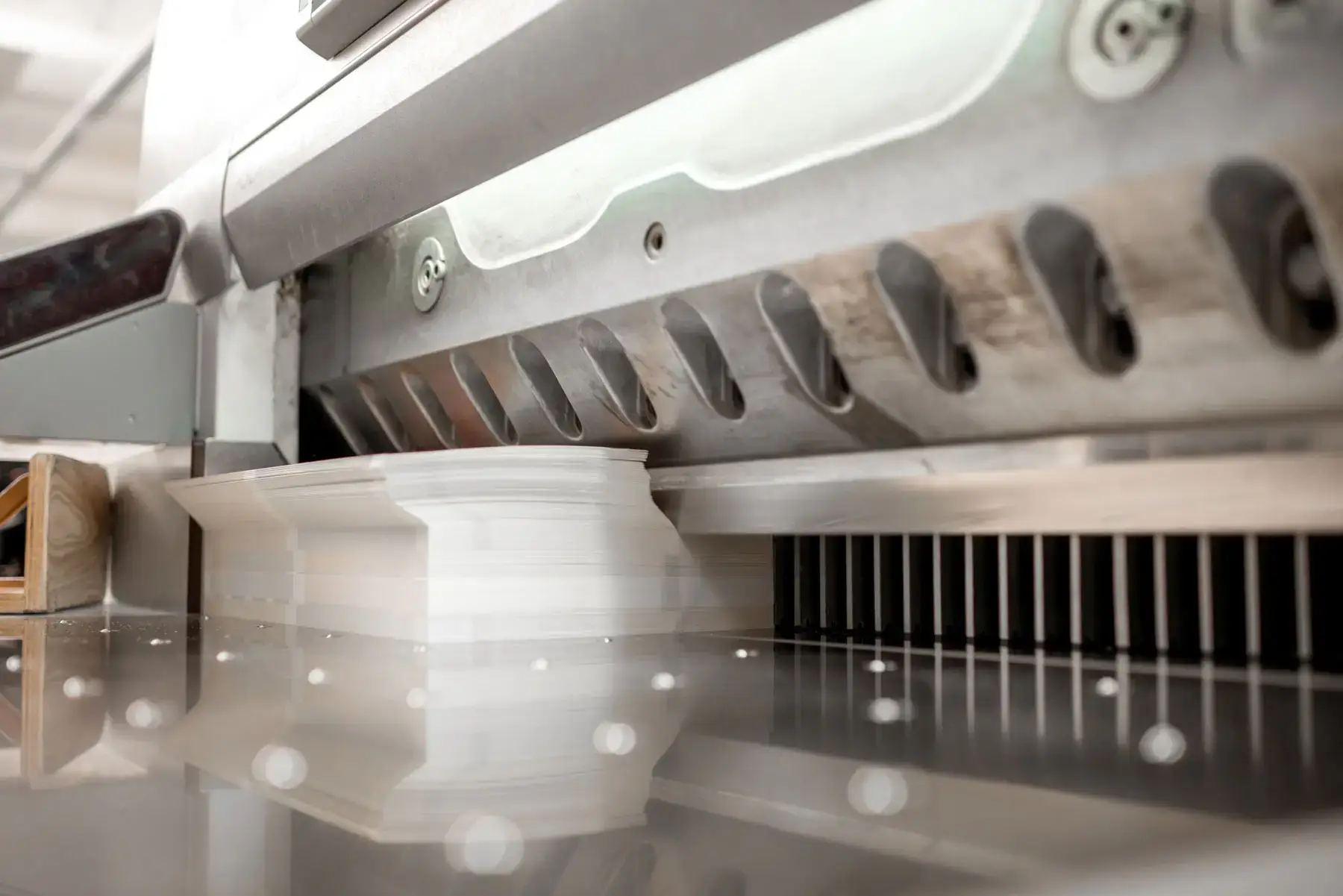
When cutting large stacks of paper, slight movements, known as cutter draw, can occur. This can cause slight misalignments, resulting in unwanted white edges on the final printed product. Bleed ensures that even with these slight shifts, the design still extends to the edge without any white showing.
Humidity:
Paper can expand and contract with changes in humidity. This slight change can affect the alignment of the paper during printing and cutting. By including a bleed, you can accommodate these variations and ensure that the design remains consistent to the edge of the paper.
Trimming Precision:
Even with modern cutting technology, there can be slight deviations during the trimming process. Bleed acts as a safety net to account for these deviations, ensuring that the design still covers the entire printed area without any gaps or white lines.
Professional Appearance:
Bleed contributes to a polished, professional appearance by eliminating the risk of white borders. This is crucial for maintaining the integrity and visual impact of marketing materials, business cards, brochures, and other printed products.
Solid Colors and Photos:
A trim shift is most visible where a solid color, a dark background, or a photo runs off the edge. Give those elements the full 0.125 inch of bleed on every side they touch.
The Short Version:
Extend anything that touches the edge 0.125 inch past trim, keep text and logos at least 0.125 inch inside it, and export your PDF with bleed turned on. Bleed costs nothing to add while you design and prevents the most common reason a finished piece looks wrong after trimming.
Understand More

Paper Types Explained
Discover the differences between coated, uncoated, matte, and gloss paper stocks. Learn how paper weight and finish affect the look, feel, and durability of your printed piece so you can choose the right option for brochures, books, or marketing materials.

Binding Types
From saddle stitch to perfect bound and Wire-O, each binding style creates a different look and level of durability. Explore which binding method best suits your booklet, catalog, or publication so your project is both functional and professional.

Folding Calculator
Folding layouts can be tricky, and our calculator makes it easy. Quickly figure out panel sizes and fold styles like tri-fold, Z-fold, or gatefold so your design lines up correctly and prints without surprises.
How to Add Printer Bleed in InDesign
Adding printer bleed to your documents in InDesign is straightforward. Follow these steps to ensure your documents look professional and are printed correctly:
- Open the document in InDesign.
- Select the ‘File’ menu, and then select ‘Document Setup’.
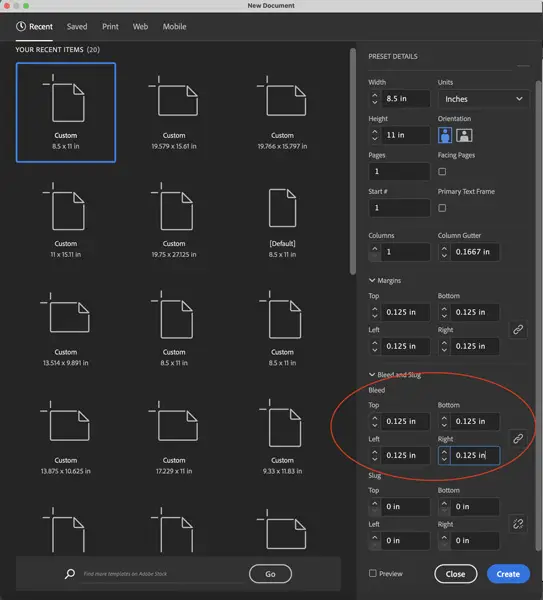
- In the ‘Bleed and Slug’ section, enter a value of 0.125 inches or higher for all four options (Top, Bottom, Left, Right). This defines how far elements should extend beyond the page edges before being cut.
- Click ‘OK’ to set up your bleed values.
- Create or move elements so they are at least 0.125 inches away from all four edges of the artboard/page size (excluding objects bleeding outside). If space constraints prevent this, consider shrinking the element or substituting a different one.
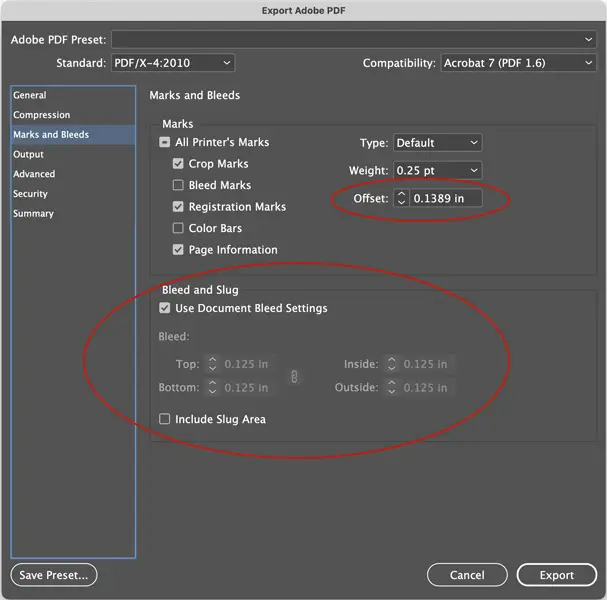
- Export a PDF/X-1a file. In the Marks and Bleeds panel of the export dialog, check Use Document Bleed Settings, otherwise the bleed you built is cropped off the PDF.
New Indesign Document with Bleed
Export Indesign Document with Bleed